A few years ago, I decided that I needed a more robust online presence. Brian Croxall and Miriam Posner have blogged about how to curate your online presence (remember the basic principles of familiarity, consistency, and participation), and I have discussed the benefit of having an online website on Karen Kelsky’s blog The ProfessorIsIn. But I’ve never really gone through the process of how to make a professional academic website with WordPress. So, here goes:
Decisions, decisions, decisions
There are so many decisions that go into what kind of website you should make. On TheProfessorIsIn, I mentioned that I
I downloaded my own WordPress package from WordPress.org and use a site called Hostmonster to be able to have my own domain name. While WordPress.com hosts websites, WordPress.org gives you the WordPress program to set up your own website whereever you want. Some people are fine with having http://yourname.wordpress.com, but I like the idea that people can easily remember my URL(“http://www.rogerwhitson.net”). You can pay for WordPress to host your domain name, but there are further advantages to using WordPress.org. These include the ability to extend the functionality of your website using plugins. I use several plugins on my site including Blackbird Pie, which allows me to embed Tweets into my site;WordPress GoodReads Bookshelf, which displays images of the books I’m currently reading; and Vimeo Quicktags, which allows me to embed videos uploaded to the Vimeo site easily. Some scholars also use Drupal, code websites themselves, or hire a professional developer but these are solutions that are often too complex and/or expensive to really help individual scholars. I am also able, should I decide to do so, to change the design of my theme by using CSS in the Editor on the WordPress dashboard.
All of this is great. But what’s the step by step process for setting up a wordpress.org site?
Get the website up and running. In my earlier experiments with WordPress, I had to download the package from WordPress.org, create a MySQL database, configure the database using phpmyadmin, then upload the package using FTP, change permissions to give WordPress the rights to write to my site, then set up my password and yadda, yadda, yadda. You can get most of these steps from WordPress’s famous 5 minute install. But trust me, unless you have a perfect system admin who communicates with you immediately, it will probably take you longer than 5 minutes.
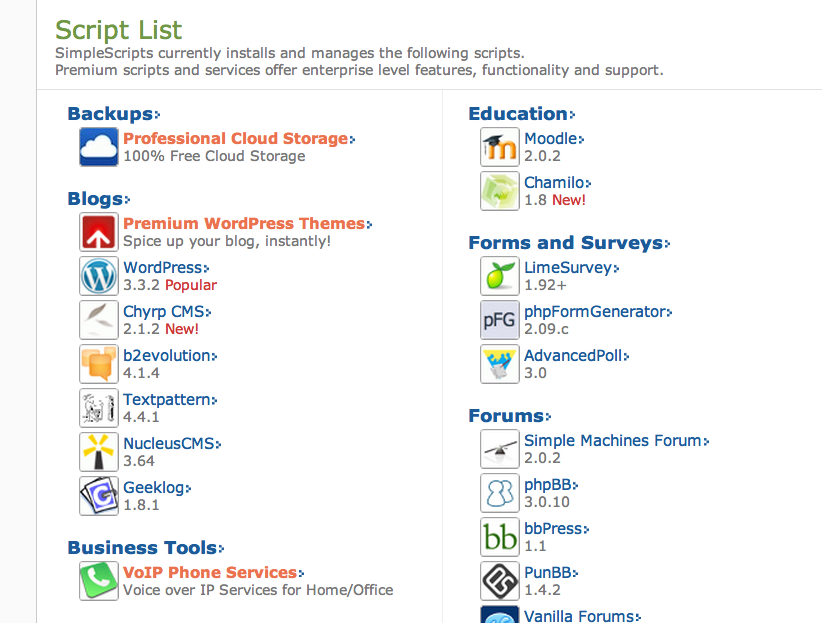
One of the benefits of using a paid host like Hostmonster is that most of them automatically install WordPress using something called a “simple script.” You basically click “simple script,” then “WordPress,” and VIOLA! your website is installed. Again, see my post on “The ins and Outs of a Professional Academic Website” for more information about different kinds of WordPress installations, and the benefits and costs of each.
Find themes and plugins that reflect your academic identity: Using the dashboard is comparatively easy. Here is an introduction to using the WordPress dashboard from the site. Two things to consider are 1) the theme and 2) your plugins. Here are a few suggestions:
Themes
- Suffusion: This is the theme I use on my professional website, and is very customizable. I created a banner for my site using Gimp (an open source version of Adobe Photoshop), but as you can see from Leeann Hunter’s website, that isn’t absolutely necessary. Here is a guide to everything you can accomplish with this powerful theme.
- Twenty-Ten or Twenty-Eleven: This is a comparatively simple theme for most academics, and looks pretty cool considering that it is the default theme for WordPress.
- Voosh Themes: Jentrey Sayers of the University of Victoria has a really awesome website theme he got from Voosh, a company providing premium themes for those willing to pay a small amount. I do have to admit that I have design-envy. Sometimes, you’ll find a particularly beautiful theme at a premium site, but don’t think that you necessarily need to buy a theme to have a well-designed site. There are plenty of themes out there to suit your needs. The Voosh themes are pretty, though.
Plugins: Apart from the plugins I already mentioned, there are a few others of interest. Plugins have their own set of instructions, most of which you can find on the website advertising them.
- Disqus Comment Center: This is a relatively new plugin I just recently heard about. Disqus centralizes all of the comments you make on blogposts across the web, makes it easier for you to change the look and feel of commenting on your site, and makes it more difficult for you to get spam.
- Jetpack by WordPress.com: This comes standard with all WordPress installs. Most of the functionality is worthless to me, but I do like the analytics engine that charts how many people are visiting your site.
- Prezi Shortcode: I often use Prezi when designing my conference presentations, and the shortcode allows me to embed those presentations on my site. It’s a really cool way to showcase your current academic work.
- WPTouch: Want to make your site easily readable on iPhones? Use this plugin.
- ZD Scribd iPaper: This plugin allows you to embed .pdf files on your website. I use it to make my CV and syllabi easily downloadable.
- Storify: I use Storify to collect Twitter conversations I have online. This plugin let’s me embed Storifys in my blog posts, like I do here.
- I use the “text” widget quite often on my site. The widget lets you use html, so I can display conferences I’ll be attending soon, my job and institutional address, and other things.
- Don’t bother with Twitter, YouTube, or Vimeo shortcode plugins: I know I have suggested them in the past, but WordPress has become increasingly adept at just using embed codes via iFrame, so I just copy and paste these embed codes directly into posts, widgets, or pages.
Construct appropriate pages. Academic blogging is its own beast, so I won’t go into that here. But I have really basic needs for my scholarly site:
- CV: Obviously this is an important page to advertise your accomplishments. For a while, I decided to include a resume, a two-page, and a full version of the CV.
- Scholarship and Research: I divide these into print scholarship and digital scholarship, since I work in the digital humanities. But you should divide your scholarship in a way that makes sense to you.
- Presentations: This is where I embed Prezis of past presentations.
- Teaching: The all-important teaching portfolio. I have an introduction to my teaching philosophy (long and short versions) with specific teaching interests, recent sample syllabi, evaluations, and student projects.
A final note about visual design. Visual design is hugely important to the way people respond to you as an academic. The first thing they will see is the visual design of your site, and job committees and colleagues will make assumptions about you based on the design of your site. While the theme and WordPress itself makes a lot of the design choices for you, I’d suggest consulting these two great resources on design
- The Non-Designers Design Book. A must for beginning designers to understand crap!
- contrast: you should avoid elements that are merely similar, making them the same or absolutely different.
- repetition: repeat design elements throughout your site. CSS does much of this work for you. But notice how I repeat the same photograph.
- alignment: every element should be aligned with something else. Nothing should seem arbitrary. My theme, suffusion, accomplishes this by aligning blog posts with widgets.
- proximity: things that relate to one another need to be right by each other. In designing tables, make sure you chunk information correctly.
- ColourLovers. This design gives several palettes for you to consider when you are designing your site.
I hope this helped! Go make your site!